File Management
Upload, organize, and manage project files with version control, file tree navigation, and recent files tracking.
Using File Management
Bimefy's File Management system provides a centralized location for all your project files. Upload BIM models, documents, images, and other project files, then organize them efficiently with version control and easy navigation. Files that need a formal approval process before going out to the client can be routed through Workflows.
1. Accessing File Management
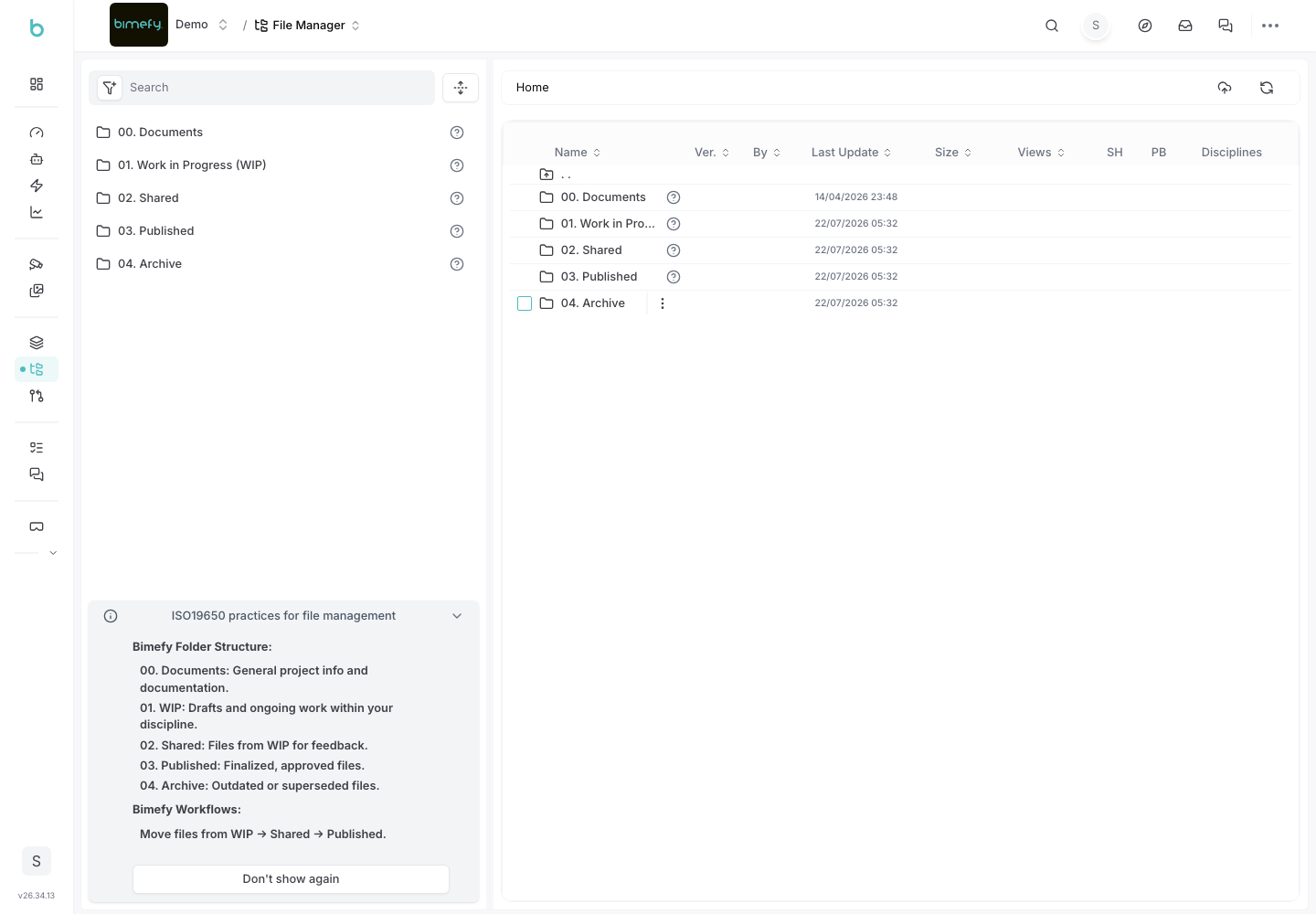
1. Navigate to the File Manager:
- From your project dashboard, under Files & Models in the left-side menu, click File Manager to access the file management interface.
- You'll see the file tree and file browser.
2. Understanding the File Tree:
- Navigate through your project's folder structure.
- Expand and collapse folders to browse files.
- Use the file tree to quickly locate specific files.
2. Uploading Files
1. Single File Upload:
- Click the upload button to select and upload individual files.
- Supported formats include BIM models (IFC, RVT, DWG), PDFs, images, and documents.
- Files are uploaded to the current folder location.
2. Batch Upload:
- Upload multiple files at once for efficiency.
- Drag and drop files directly into the file browser.
- Monitor upload progress for each file.
3. Folder Upload:
- Upload entire folders to maintain directory structure.
- Preserve folder hierarchies from your local system.
- Organize files during upload by selecting target folders.
3. File Organization
1. Creating Folders:
- Create new folders to organize your files.
- Organize files by discipline, phase, or type.
- Create nested folder structures for complex projects.
2. Moving Files:
- Drag and drop files to move them between folders.
- Reorganize files as your project structure evolves.
- Maintain file organization throughout the project lifecycle.
3. File Naming:
- Use consistent naming conventions for files.
- Follow project naming standards and conventions.
- Rename files directly in the file browser.
4. Version Control
1. File Versions:
- Bimefy automatically tracks file versions.
- View version history for any file.
- Compare different versions of the same file.
2. Version Management:
- Upload new versions of existing files.
- Keep previous versions for reference and rollback.
- Access version history to see changes over time.
3. Version Comparison:
- Compare different versions of files side-by-side.
- Identify changes between versions.
- Use version comparison for quality control.
5. Recent Files
1. Recent Files Widget:
- The dashboard shows recently uploaded or changed files.
- Quickly access files you've been working on.
- Track file activity across your projects.
2. File Activity:
- See when files were last modified.
- View who made changes to files.
- Track file access and usage.
6. File Viewing and Preview
1. BIM Model Viewing:
- Open BIM models directly in 3D Views.
- View IFC, RVT, and other BIM formats.
- Compare multiple models side-by-side, or open one in Virtual Reality for a fully immersive view.
2. Document Preview:
- Preview PDFs and documents without downloading.
- View images and photos in the browser.
- Access file previews quickly.
3. File Information:
- View file details including size, type, and upload date.
- See file metadata and properties.
- Check file permissions and access.
7. File Sharing and Collaboration
1. File Permissions:
- Control who can view, edit, or download files.
- Set permissions based on roles and disciplines.
- Manage file access at the folder or file level.
2. File Sharing:
- Share files with team members.
- Generate shareable links for external stakeholders.
- Control sharing permissions and expiration.
3. Collaborative Editing:
- Work on files collaboratively with your team.
- See who is currently viewing or editing files.
- Coordinate file access to avoid conflicts.
8. File Search and Filtering
1. Search Files:
- Search for files by name, type, or content.
- Use advanced search filters to find specific files.
- Save search queries for quick access.
2. File Filtering:
- Filter files by type, date, or owner.
- Show only recently modified files.
- Filter by file status or workflow state.
9. Best Practices for File Management
- Consistent Organization:
- Establish and follow folder structure conventions.
- Organize files logically by discipline, phase, or type.
- Keep folder structures consistent across projects.
- Regular Maintenance:
- Periodically review and clean up unused files.
- Archive completed project files.
- Maintain clear file naming conventions.
- Version Control:
- Upload new versions rather than deleting old ones.
- Use version numbers or dates in file names when appropriate.
- Keep version history for important files.
- Access Control:
- Set appropriate permissions for sensitive files.
- Review file access regularly.
- Ensure team members have access to files they need.