Progress Tracking
Monitor construction progress using AI-driven analysis, compare models with site photos, and track milestones.
Using Progress Tracking
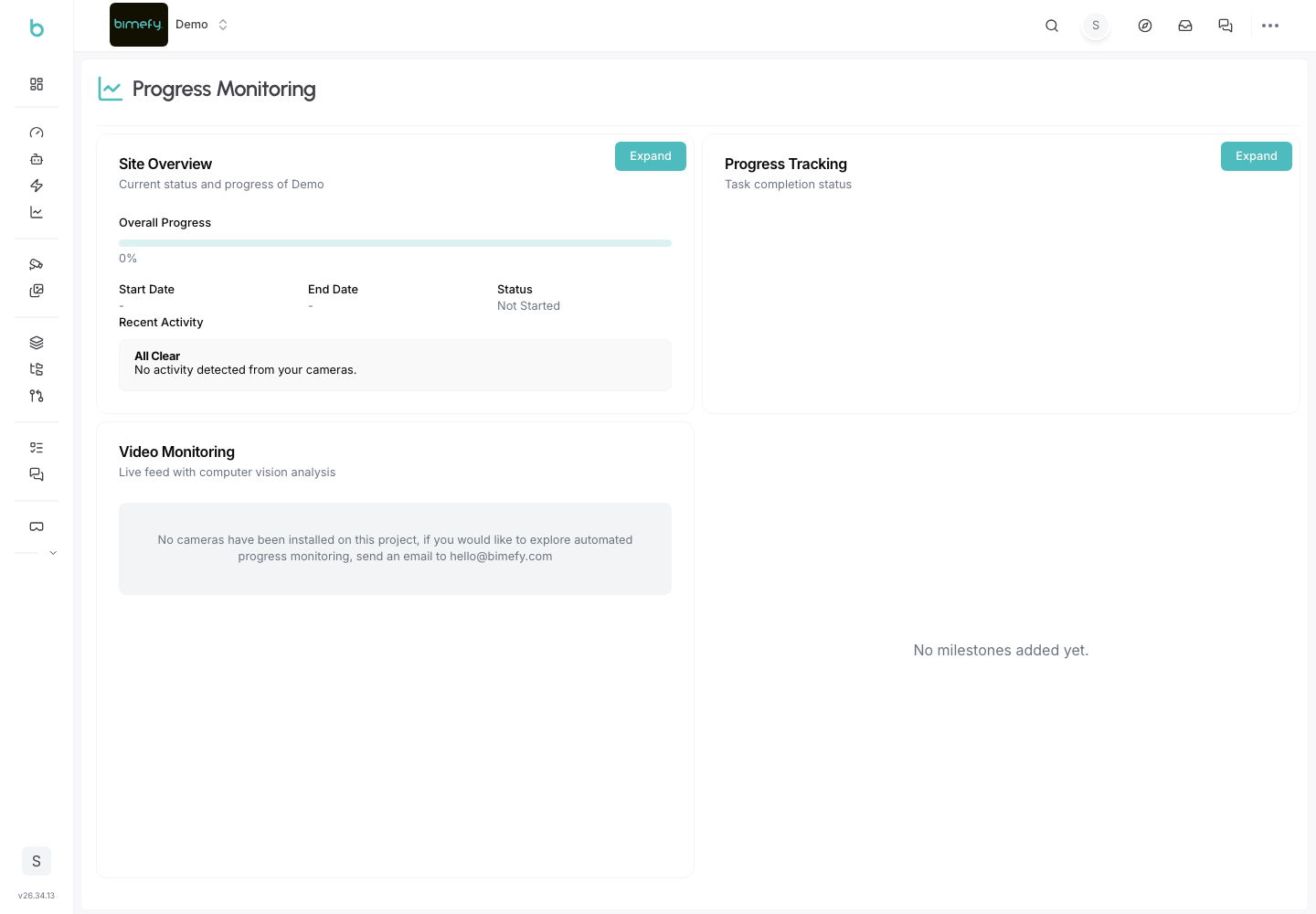
Bimefy's Progress Tracking feature uses AI and computer vision to automatically analyze construction site images and compare them with your BIM models. This helps you monitor project progress, identify deviations, and track milestones in real-time.
Progress Tracking isn't a standalone menu item — it's the BIM comparison panel you reach from the Site Dashboard (see the Site Dashboard guide for how the overall dashboard is organized). This same viewer also hosts the Clash Detection and Quantities panels, and works best once your model is loaded into a 3D View. Site photos are managed via the Capture Hub, and the progress percentages shown here are driven by tasks linked to BIM components — see Task Management.
1. Accessing Progress Tracking
1. Navigate to the Site Dashboard:
- In the left-side menu, under Site Intelligence, click Site Dashboard.
- From there, open the progress/BIM comparison panel to access the tools described below.
- You'll see an overview of your project's progress metrics and recent activity.
2. Understanding the Dashboard:
- The dashboard displays overall progress percentage, weekly progress, and monthly progress.
- View recent progress events and milestones at a glance.
2. Uploading Site Images
1. Adding Construction Photos:
- Upload photos from your construction site to compare with your BIM models.
- Supported formats include standard image files (JPG, PNG, etc.).
- You can upload individual photos or batch upload multiple images.
2. Camera Integration:
- Connect on-site cameras to automatically capture and analyze progress.
- Camera feeds can be integrated for continuous monitoring.
- Images are automatically processed by AI to detect progress and issues.
3. AI-Driven Progress Analysis
1. Automatic Progress Detection:
- Bimefy's AI analyzes uploaded images to detect construction progress automatically.
- The system compares site photos with your BIM models to identify completed work.
- Progress is calculated based on model elements and their completion status.
2. Model Comparison:
- Compare your BIM models side-by-side with actual construction photos.
- Identify discrepancies between the design and what's been built.
- Track which elements are complete, in progress, or not yet started.
3. Progress Metrics:
- View overall project completion percentage.
- Track weekly and monthly progress to understand project velocity.
- Monitor progress trends over time.
4. Milestone Tracking
1. Setting Milestones:
- Define project milestones to track key deliverables and phases.
- Milestones help break down the project into manageable segments.
2. Monitoring Milestone Progress:
- Track progress toward each milestone.
- Receive alerts when milestones are approaching or at risk.
- Visualize milestone completion on the project timeline.
3. Timeline Visualization:
- Use the project timeline to see progress over time.
- Identify periods of high activity or potential delays.
- Compare planned vs. actual progress.
5. AI Issue Detection
- Bimefy's AI flags potential deviations between your BIM model and site reality as it processes captured images, and queues them for review in the AI-generated Issue Detection Suggestions dialog.
- Suggestions are organized into Pending, Approved, and Rejected tabs, filterable by task number, task title, detection title, camera name, or the AI's analysis text.
- Each suggestion shows its evidence images (camera and viewer screenshots) and, if one already existed, the task it's linked to.
- Review each suggestion with Confirm Issue or reject it — that's the full review action. There's no severity/category classification and no team-member assignment; if a suggestion needs follow-up, create or update a task for it separately in Planning & Tasks.
- For a side-by-side view of the model against a 360° photo or Gaussian Splat capture (rather than the AI's automatic detection), see the BIM vs Reality guide.
6. Reporting
- Generate progress reports for stakeholders.
- Export progress data and visualizations.
- Share progress updates with your team and clients.
7. Best Practices for Progress Tracking
- Regular Updates:
- Upload site photos regularly to maintain accurate progress tracking.
- Consistent monitoring helps catch issues early.
- Quality Images:
- Use clear, well-lit photos for better AI analysis accuracy.
- Ensure photos are taken from consistent angles when possible.
- Model Alignment:
- Keep your BIM models up-to-date to ensure accurate comparisons.
- Update models when design changes occur.
- Team Collaboration:
- Share progress insights with your team.
- Use progress data to inform project decisions and planning.