Automations
Set up rule-based automation workflows that trigger emails, webhooks, Slack posts, or ERP updates, and schedule recurring reports.
Using Automations
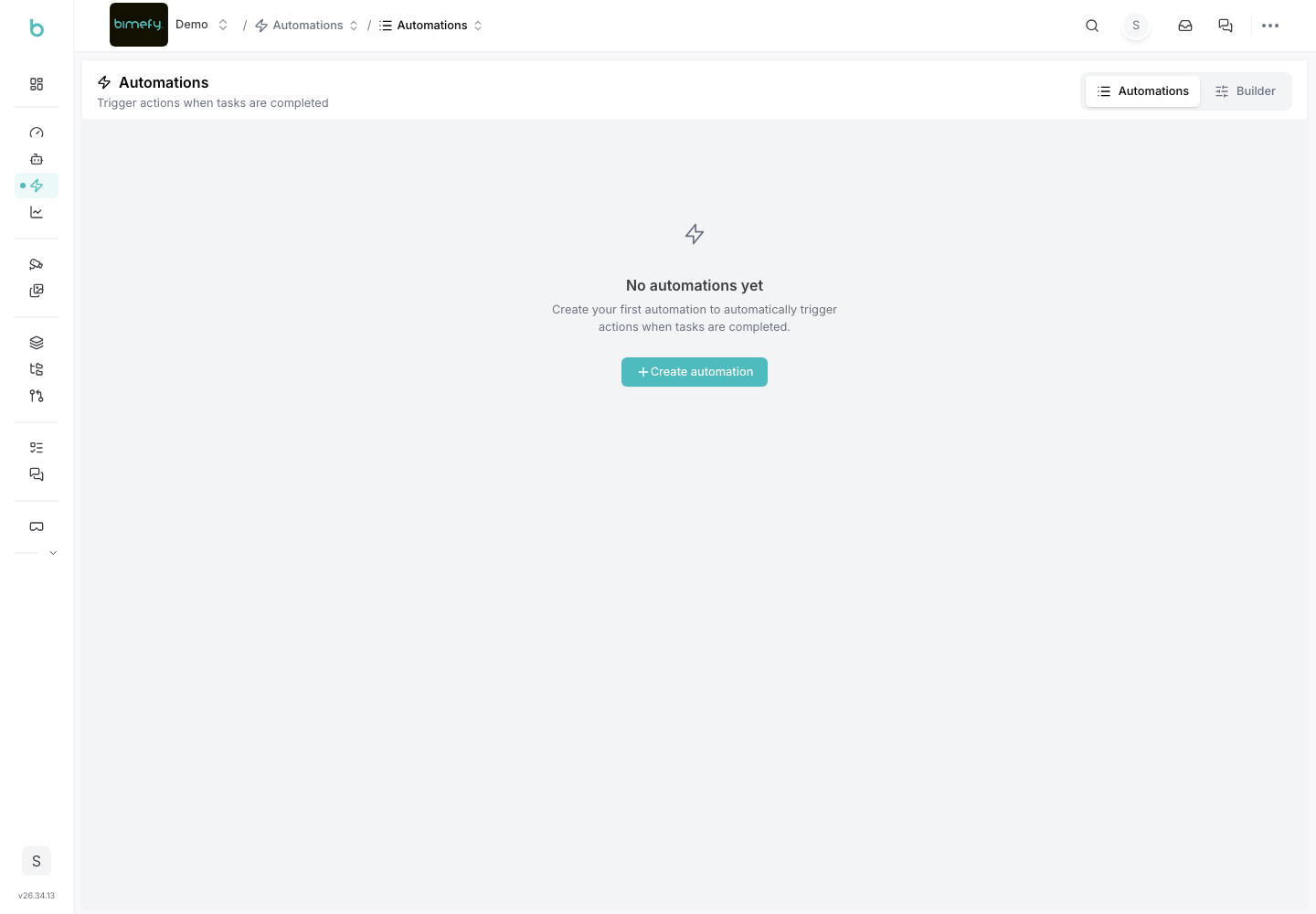
Automations let you automatically react to changes in your project — for example, when a task's status changes — by sending an email, calling a webhook, posting to Slack, or updating an ERP system. This is different from Workflows (the WIP → Shared → Published file approval process) — see that guide if you're looking for file approvals instead.
1. Accessing Automations
1. Navigate to Automations:
- In the left-side menu, under Site Intelligence, click Automations.
2. Creating an Automation
1. Start a New Automation:
- Click the button to create a new automation workflow. 2. Define the Trigger:
- Choose which task(s) or task status changes (e.g., Opened, In Progress, Completed) should trigger the automation. You can build the trigger using rules, a manual selection, or start from a template. 3. Choose the Action:
- Select what happens when the trigger fires: Send Email, Webhook, Post to Slack, or Update ERP. 4. Set Recipients:
- For email and Slack actions, choose which team members should receive the notification.
3. Managing Automations
- Search and Filter: find existing automations by name, or filter by Active/Paused status.
- Toggle On/Off: pause an automation without deleting it.
- Edit or Delete: open an automation to change its trigger/action, or remove it entirely.
- Timeline View: use the Gantt-style trigger view to see automation triggers laid out over time.
4. Scheduled Reports
- In addition to event-triggered automations, you can schedule recurring reports to be generated and sent to selected recipients on a regular cadence.
5. Best Practices
- Start Narrow: automate one well-understood trigger at a time before building out more complex rule sets.
- Review Recipients: keep the recipient list for each automation up to date as your team changes.
- Use Templates: start from a template when available to avoid rebuilding common automation patterns from scratch.